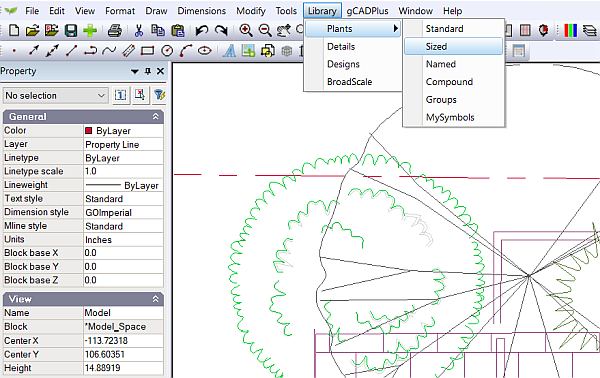
The gCADPlus symbol library is accessed from the Library drop down menu.
This menu provides quick access to a wide range of symbols for species planting and other details. The ‘plants ‘group contains three types of symbols – Standard, Sized, Named Compound, Groups and MySymbols. A number of these contain sub-groups of symbols. The figure below show a gCADPlus user accessing the sized symbol group.
Standard symbols
The standard group consists of > 100 stock symbols suitable for indicating the position of a plant specimen. Selecting the Standard group pops up a dialog box shown below.

The name of the symbol shows in the left column and a snapshot of the symbol shows at right. The mouse or the arrow keys on the keyboard can be used to scroll up and down the list. Clicking on the symbol starts the blocks dialog box command and prepares the symbol for insertion into the drawing.
Tip: If you do not want the date and type of information showing in this box, right click and un-check the option.

It is possible at this point to rename the symbol, edit it or even delete the symbol if it’s not to your liking.
Selecting the symbol pops up yet another box. This allow setting the method for sizing, origin, etc. In the example below, the designer will specify the insertion point, but leaves scale fixed at 1.0 and rotation set at angle 0.

Tip: By default, each symbol in the default group has a canopy diameter of 1 meter (or 3 feet in the Imperial version of gCADPlus).
Two layers have been used for each symbol. The main symbol information is located on a later L-PLNT-SYMBOL. A layer called L-PLNT-CONSTRUCTION is also used and contains a circle and point entity centered at coordinate position 0,0. Layer L-PLNT-CONSTRUCTION is turned off by default. This layer system can be used to show a construction team the location of particular species.
 We demonstrate the use of planting symbols in the gCADPlus ‘standard’ library. It is possible with a couple of mouse clicks to print either a full color plan or one for the construction team from the same design file.
This movie shows the use of the ‘modern’ symbol set in a gCADPlus design.
This movie shows the use of the elevation sub-set of the standard planting symbols.

Sized
The sized group contains links to symbols for climbers, grasses, ground covers, hedge, large, medium, small and mini shrubs, small and large trees adjust according to expected size. Each symbol has been made in such a way as to make the handling of upper canopy planting a little easier. The entities making up the symbol have been placed on a layer specific for the size of the species. As shown in the movie below, it is a simple matter to adjust the color of the Tall Tree or Small Tree layer to ‘lighten’ it off.
Using the sized group of library symbols in gCADPlus. We show how to control the display of upper canopy species in a landscape plan.
Named
The named group contains symbols designed illustrate specific species.
Compound
The Compound group.
Groups
The ‘Groups’ group
MySymbols
The MySymbols group.
Details
The ‘details’ group leads to symbols for details such as north points, drawing sheets etc. The ‘designs’ group is provided so you can store completed design work ready for incorporation into new jobs. The ‘broadscale’ group is designed for use in large scale projects. Tip: Selecting a symbol enables it to be dropped directly into a design.