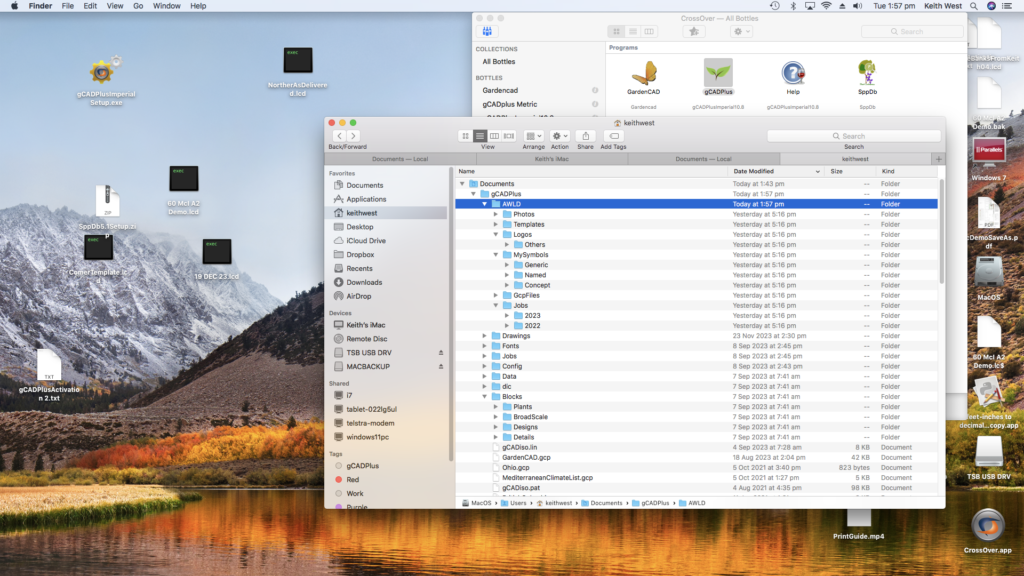
Landscape designers can use gCADPlus on a Mac. Since gCADPlus is Windows software, it requires some Windows emulation software to run on your Mac. We recommend using CrossOver, but alternatives such as Parallels and Fusion are also available. The figure below shows the USA (Imperial) version of gCADPlus and CrossOver running on our iMac, which uses the High Sierra operating system.
The image below shows the USA (Imperial) version of gCADPlus and CrossOver running on our iMac, which uses the High Sierra operating system. Learn more about gCADPlus.

 Here is a small movie that introduces the gCADPlus software interface using the metric version of gCADPlus. We use a template to help get started and import a plant symbol from the symbol library. Aided by the polar switch, we draw our first line of an accurately defined length and save (file) the developing design. We discuss the various types of files used by gCADPlus. Designs are always stored with the filename – .lcd, but as the design develops, a backup file (with the extension .bak), and an autosave file with the extension .lc$ to the filename are available. This provides several levels of data protection. An increment and save feature is also available.
If you need to work with a .bak or .lc$ file, both the .bak and .lc$ files need to be renamed, removing the .bak or lc$ extension and giving the extension .lcd. Use the ‘Your Computer’ tool to do that. We suggest that rather than using the .bak or .lc$ file and renaming it directly, you work on a copy of either backup file and rename it to something like MyRecoveredFile.lcd. Once you are satisfied that you have the complete recovered file, please start using the incremental save feature from time to time in case the gCADPlus drawing contains a gremlin (see below).
The best tool to use when saving your gCADPlus drawings is the incremental save tool found on the standard toolbar. As the name implies, this tool saves a drawing and creates a new file version with a different name. This is useful because it lets you track changes made to your drawing over time. You can access previous versions of your drawing by opening the file with the appropriate name. This feature is especially useful if you must revert to an earlier version of your drawing.
This movie shows how to use the incremental backup tool.
Apple Time Machine

Apple Time Machine is a backup tool that provides much more protection for professional landscape designers. Once an external USB drive is connected to your Mac, a copy of all files on your Mac is stored. By default, files are backed up every 24 hours. Once Time Machine is run for the first time, these backups are quick because Time Machine stores changes to files rather than the total file.
Importantly, it is possible to recover previous versions of files (designs). This capability can be useful as clients wish to ‘push’ the design in different directions.
To sum up, if you work as a professional landscape designer on a Mac, your drawings are valuable property and must be protected. We recommend using a time machine to monitor the drawings you store for each client continuously. Drawings are continuously backed up; at any point, you can revert to earlier versions of the design. The standard installation of gCADPlus creates a series of folders, including Jobs in the Documents > gCADPlus folder. You might create a folder for your design practice with its own jobs folder to store design files, creating a new folder for each calendar year. The figure below shows how that might be done for a design studio called AWLD.
To back up the folder containing drawings to your Mac using Time Machine, follow these steps:
- Connect an external storage device to your Mac, such as a USB drive or Thunderbolt drive.
- Set up the storage device as your backup disk by selecting it in the Time Machine preferences.
- Once set up, Time Machine will automatically back up your files, including your gCADPlus drawings, every 24 hours.
- To restore a previous file version, open the Time Machine app and navigate to the file you want to restore. You can preview the file and select the version you want to restore.